
To activate 2-factor authentication (2FA) for your myDLMS login, follow these steps:
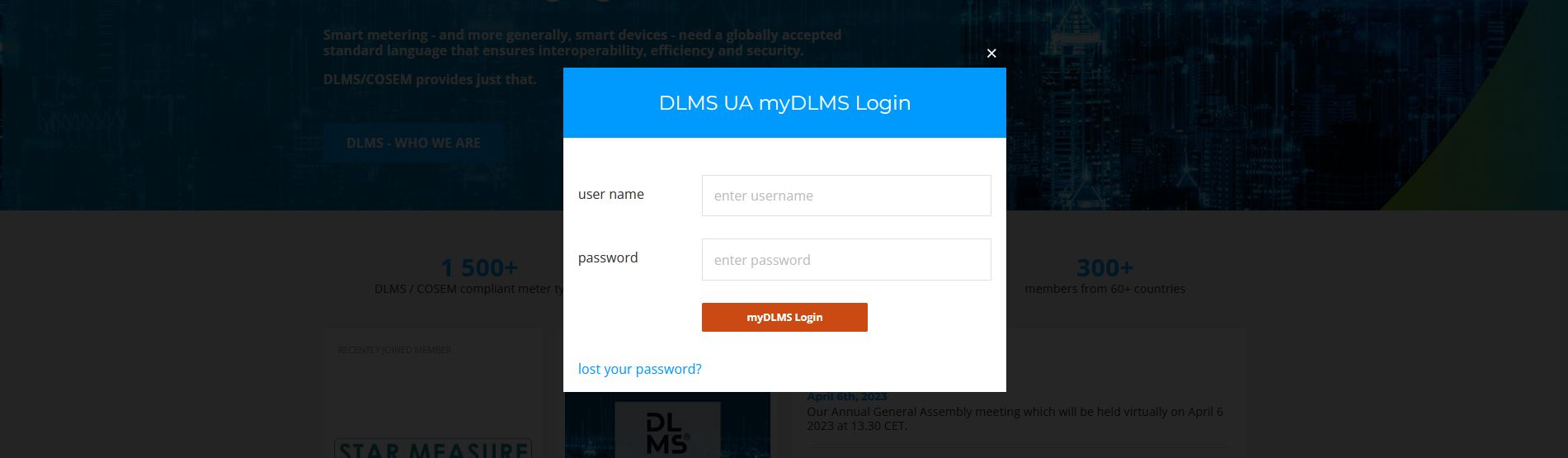
Step 1: Log in to your myDLMS account
- Use your usual login credentials to access myDLMS.
Step 2: Install a 2FA Application
- Install a two-factor authentication app on your smartphone or add it as a browser extension to your laptop.
- Commonly used programs include:
- Microsoft Authenticator (App for Android and iOS)
- Google Authenticator (App for Android and iOS)
- Authenticator CC (Browser extension for Chrome, Firefox, and Edge)
Step 3: Pair the App with MyDLMS
- Open your 2FA app and scan the QR code displayed in the myDLMS 2FA settings.
- After scanning the QR code, click "Confirm Activation" on myDLMS.
Step 4: Enter the One-Time Code
- Enter the One-Time Code generated by your 2FA app in the field provided on myDLMS.
- Click "Save" to complete the setup. Note: The code is valid for only about 30 seconds, so act quickly.
Final Step: Test Your Login
- Two-factor authentication is now activated for your myDLMS account.
- Log out and log in again to ensure the setup is successful.